
Image Converter Tool: A Simple Way to Convert Images Online
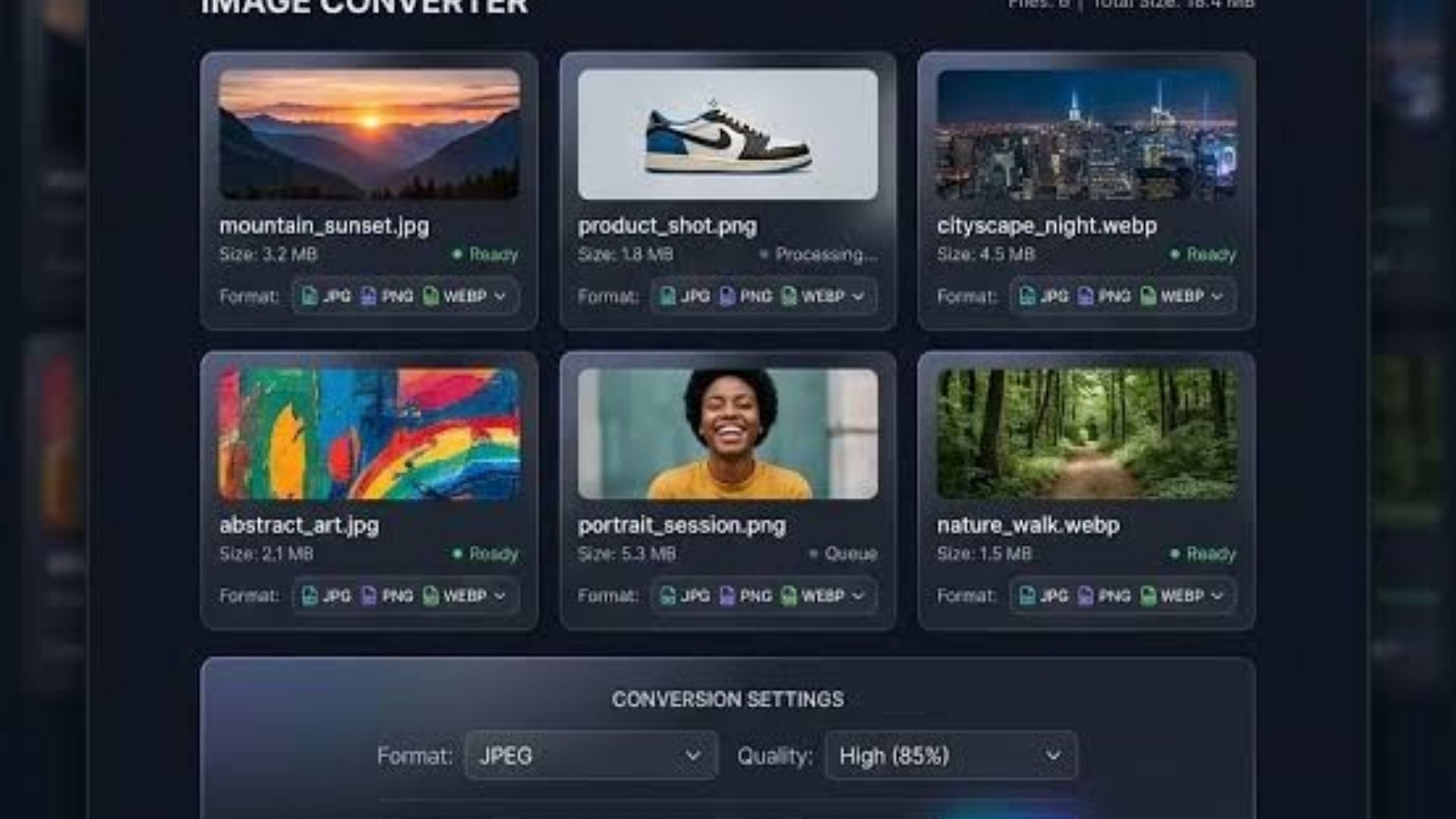
QRImager - Images are an important part of our everyday digital lives. We use them for websites, social media posts, online stores, presentations, school projects, and many other purposes. However, not every image format works perfectly for every situation. Sometimes, you need to convert an image into a different format to make it easier to upload, share, edit, or display.
An Image Converter Tool makes this process simple. Instead of installing complicated software or learning advanced editing techniques, you can change an image from one format to another in just a few steps.
Whether you want to convert JPG to PNG, PNG to WebP, or WebP to JPG, an online image converter can help you prepare your files quickly and conveniently.
What Is an Image Converter Tool?
An Image Converter Tool is a digital utility that changes an image from one file format to another. It allows users to convert images without necessarily changing the original appearance or dimensions of the picture.
For example, if you have a PNG image that you want to use on a website, you might convert it to WebP to reduce its file size. If you have a WebP image that is difficult to open in an older application, converting it to JPG may make it easier to use.
Image conversion is useful for both personal and professional projects. Photographers, website owners, designers, students, and everyday internet users can all benefit from having access to a reliable image conversion tool.
Many online tools also work directly in a web browser, making them accessible from different devices without requiring additional software.
Why Do You Need to Convert Image Formats?
Different image formats are designed for different purposes. Choosing the right format can help you manage file sizes, maintain image quality, and ensure compatibility with the applications or platforms you use.
Here are some common reasons to convert an image.
1. Improve Website Performance
Large image files can take longer to load, especially for visitors using slower internet connections. Converting images to a more efficient format, such as WebP, can help reduce file sizes while maintaining a suitable level of visual quality.
For website owners, optimized images can contribute to a smoother browsing experience. This is particularly useful for blogs, online stores, portfolios, and websites that display many photographs.
However, image conversion alone does not guarantee faster page loading. Image dimensions, compression settings, hosting performance, and other website elements also play a role.
2. Make Images Compatible With Different Devices
Not every application or device supports every image format equally well. You might receive an image that cannot be opened easily in your preferred software or uploaded to a particular platform.
Converting the file into a widely supported format, such as JPG or PNG, can help solve this problem.
For example, converting a WebP image to JPG may make it easier to share with someone who uses older image-editing software.
3. Reduce Image File Size
Some image formats and compression settings produce smaller files than others. If you need to upload images to a website, send them by email, or store a large collection of pictures, reducing file size can be helpful.
Converting a PNG photograph to JPG, for instance, may significantly reduce its size. Converting a suitable image to WebP can also provide efficient compression.
Keep in mind that the results depend on the original image, the chosen format, and the conversion settings. A smaller file does not always mean better image quality.
4. Prepare Images for Online Platforms
Different platforms may have different requirements or recommendations for image formats. A website, social media service, or content management system might handle certain formats more conveniently than others.
An image converter helps you prepare your pictures before uploading them. This can save time when managing product photos, blog thumbnails, profile pictures, banners, and other visual content.
Common Image Formats Explained
Before converting an image, it helps to understand the characteristics of popular image formats. Each format has its own advantages, so the right choice depends on how you plan to use the image.
|
Image Format
|
Main Characteristics
|
Common Uses
|
| --- | --- | --- |
|
JPG / JPEG
|
Supports lossy compression and produces relatively small files
|
Photographs, blog images, and everyday pictures
|
|
PNG
|
Supports lossless compression and transparency
|
Logos, icons, graphics, and screenshots
|
|
WebP
|
Supports lossy and lossless compression, as well as transparency
|
Websites, product images, and online graphics
|
|
GIF
|
Supports simple animation and a limited color palette
|
Simple animations and short looping graphics
|
|
BMP
|
Commonly stores raster images with limited compression
|
Legacy applications and specific workflows
|
|
TIFF
|
Supports high-quality image storage and various compression options
|
Scanning, publishing, and professional imaging
|
Choosing a format is not just about file size. Transparency, image quality, animation, and compatibility are also important considerations.
For example, JPG is often suitable for photographs, while PNG is a practical option for graphics that need a transparent background.
How to Use an Online Image Converter
Using an online image converter is generally straightforward. Although the interface may differ between tools, most follow a similar process.
Step 1: Upload Your Image
Open the image converter and select the file you want to convert from your device. Some tools also support drag-and-drop uploads, which can make the process more convenient.
Before uploading, make sure you have selected the correct image.
Step 2: Choose an Output Format
Select the format you want to use for the converted image. Common options include JPG, PNG, and WebP.
Consider where the image will be used before making your selection. For example, choose PNG if you need transparency, or JPG if you want a broadly compatible format for a photograph.
Step 3: Adjust the Settings
Some image converters offer additional options, such as image quality, compression level, or resizing.
If these settings are available, adjust them according to your needs. A higher quality setting may preserve more visual detail but produce a larger file.
If you do not need to change these options, the default settings may be sufficient.
Step 4: Convert the Image
Click the convert button and allow the tool to process your file. The time required may depend on the image dimensions, file size, and how the converter works.
Once the conversion is complete, the tool should provide the converted image.
Step 5: Download and Check the Result
Download the converted file to your device. Open it to make sure the image looks correct and that important details have been preserved.
If the image appears blurry, has unexpected colors, or no longer includes transparency, review the output format and conversion settings.
That's it! Your image is ready to use.
JPG vs. PNG vs. WebP: Which Format Should You Choose?
One of the most common questions about image conversion is which format to choose. The answer depends on the type of image and your intended use.
When to Use JPG
JPG is a popular choice for photographs and images with many colors. Its lossy compression can produce relatively small files, making it useful for sharing pictures and displaying photographs online.
However, JPG does not support transparent backgrounds. Repeatedly editing and saving a JPG image can also reduce its quality.
When to Use PNG
PNG is useful for logos, interface elements, illustrations, and screenshots that need clear edges or transparency.
It uses lossless compression, meaning the original pixel data can be preserved when saving in PNG format. However, PNG files can be considerably larger than JPG files for photographic content.
When to Use WebP
WebP is designed for efficient web images and supports both lossy and lossless compression. It also supports transparency and animation.
For website owners, WebP can be a useful option when balancing image quality and file size. Before converting, check whether your target application or workflow supports the format.
There is no single format that is ideal for every image. The best choice depends on your priorities, whether that means smaller files, transparency, visual quality, or compatibility.
Benefits of Using an Image Converter Tool Online
An online image converter offers several practical advantages, particularly for people who need to convert images occasionally or as part of their daily work.
No Complicated Installation
Many browser-based converters do not require you to install a separate application. You can open the tool, select an image, and begin converting.
This is convenient when working on a shared computer or a device with limited storage.
Simple and Beginner-Friendly
A good image converter should be easy to understand, even for users without technical experience. Clear format options and a straightforward conversion process make the task less confusing.
You do not need professional design skills to change an image format.
Works Across Different Devices
Depending on the tool, you can convert images using a desktop computer, laptop, tablet, or smartphone.
As long as the browser and file format are supported, you can perform basic image conversions without relying on a particular operating system.
Saves Time
For simple conversions, an online tool can be faster than opening a full image-editing application. This is especially helpful when you only need to change a file format rather than edit the image itself.
Some tools also offer batch conversion, allowing multiple images to be processed in one session.
Convenient for Everyday Tasks
From preparing website graphics to sharing family photographs, an image converter can handle many common file-format tasks in one place.
The experience is particularly useful when the tool supports popular formats and provides clear download options.
Is It Safe to Use an Online Image Converter?
Online image converters can be convenient, but it is worth considering privacy and security before uploading files.
Images sometimes contain personal information, confidential business details, or other content that should not be shared publicly. Before using an online service, review its privacy policy and understand how uploaded files are handled.
Here are a few practical precautions:
-
Check the privacy policy: Look for information about file storage, processing, and deletion.
-
Avoid uploading sensitive images: Do not upload confidential documents or private photographs to services you do not trust.
-
Use secure connections: Look for HTTPS in the website address.
-
Review downloaded files: Make sure the downloaded file has the expected format and opens correctly.
-
Choose a suitable tool: If privacy is particularly important, consider a converter that processes images locally in your browser.
Local processing can reduce the need to send image files to an external server. However, check how the specific tool operates rather than assuming every browser-based converter works this way.
Tips for Getting Better Image Conversion Results
A few simple practices can help you get better results when converting images.
Start with the original file. Whenever possible, use the highest-quality original image available. Converting an already compressed image repeatedly may introduce additional quality loss.
Choose the format based on your needs. Use JPG for many photographs, PNG for graphics requiring transparency, and WebP when you want an efficient format for supported web applications.
Pay attention to image dimensions. If an image is much larger than necessary, resizing it may reduce its file size more effectively than changing the format alone.
Check the output quality. After conversion, inspect the image at its intended display size. Look for blurry details, compression artifacts, or missing transparency.
Keep a backup of important images. Save the original file before converting, especially if you are working with valuable photographs or professional graphics.
Avoid unnecessary conversions. If your current image already meets your requirements, there may be no need to convert it again.
These habits can help you maintain a useful balance between image quality, file size, and compatibility.
Frequently Asked Questions (FAQs)
1. What is an Image Converter Tool used for?
An Image Converter Tool is used to change an image from one file format to another. It can help make images compatible with different applications, prepare pictures for websites, and manage file sizes.
2. Can I convert images online for free?
Yes, many online image converters offer free conversion features. However, available formats, file size limits, batch processing, and other features depend on the individual service.
Check the tool's terms and limitations before using it.
3. Can I convert JPG to PNG without losing quality?
Converting JPG to PNG does not restore image details that were lost during the original JPG compression. Although PNG can preserve the decoded image without additional lossy compression, the converted file will not automatically have better quality than the original.
4. Does converting an image reduce its file size?
It can, but the result depends on the original format, output format, compression settings, and image content. Some conversions produce smaller files, while others may increase file size.
For better results, compare the converted file with the original.
5. Can I convert PNG to WebP?
Yes. PNG images can be converted to WebP using a compatible image converter. WebP supports transparency, so it can be suitable for many logos, illustrations, and graphics originally saved as PNG.
Check the conversion settings to ensure that transparency is preserved.
6. Will converting an image change its dimensions?
Not necessarily. A standard format conversion usually preserves the image's dimensions. However, some tools include resizing options that allow you to change the width and height during conversion.
7. Can I convert images on my phone?
Yes, many online image converters work in mobile browsers. You can select an image from your phone, choose an output format, and download the converted file, depending on the tool's supported features.
8. Is an online image converter better than desktop software?
Both options have advantages. Online converters are convenient for quick tasks and do not always require installation. Desktop software may offer more advanced editing options, greater control over processing, and better suitability for complex workflows.
The right option depends on your needs and the features you require.
Convert Your Images Quickly and Easily
Changing image formats does not have to be complicated. With an online Image Converter Tool, you can prepare pictures for websites, improve compatibility, and manage your image files through a simple process.
Whether you need to convert JPG to PNG, change PNG to WebP, or make a WebP image easier to share, choosing the right format can make your workflow more convenient.
For the best results, consider the purpose of your image, check the available conversion settings, and always review the final file before using it.
Ready to convert an image? Choose your preferred output format, upload your image to a suitable converter, and get your file ready for its next use.
